Tier Discount
Overview
Tier Discount lets you apply percentage or fixed amount discounts to specific products or variants. Each tier targets a set of products and applies its own discount value, making it ideal for promotions like "20% off Kitchen range, 30% off Bedroom range" within a single discount.
You can optionally require a minimum quantity per cart line before the discount applies, and control which products receive the discount using a selection strategy.
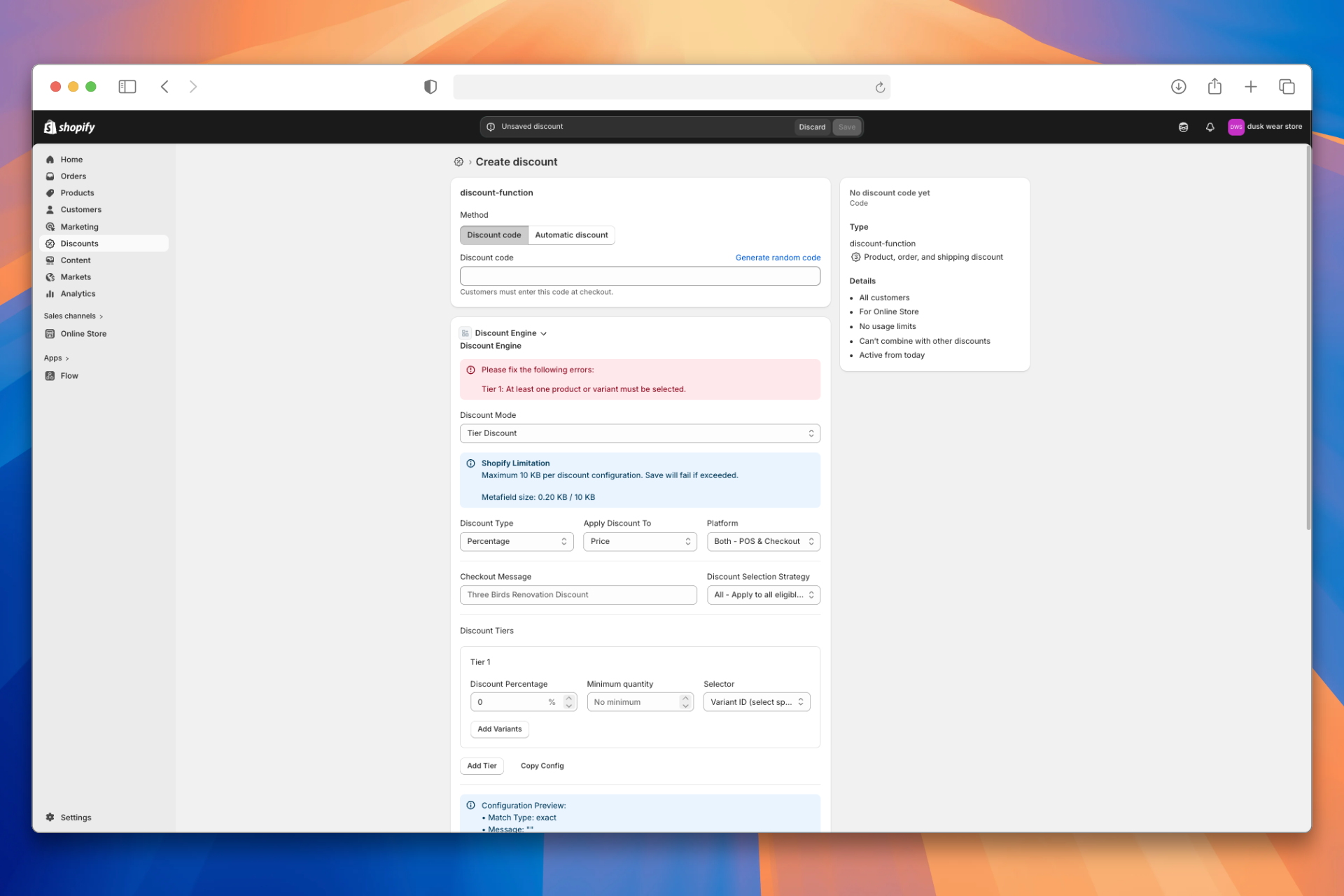 Caption: Tier Discount configuration in Shopify Admin (Create discount)
Configuration Reference
Top-Level Fields
| UI Label | Type | Required | Default | Description |
|---|---|---|---|---|
| Discount Mode | string | Yes | — | Set to Tier Discount |
| Discount Type | string | Yes | Percentage | Percentage or Fixed Amount |
| Discount Tiers | object | Yes | — | Map of discount values to tier configs (see below) |
| Checkout Message | string | No | "" | Custom prefix shown at checkout (e.g. "FLASH SALE") |
| Apply Discount To | string | No | Price | Price or RRP (Compare At Price) |
| Platform | string | No | Both - POS & Checkout | Both - POS & Checkout, POS Only, or Checkout Only |
| Discount Selection Strategy | string | No | All | All, First, or Maximum |
Tier Configuration
Each tier is added via the Add Tier button. Each tier has:
| UI Label | Type | Required | Default | Description |
|---|---|---|---|---|
| Discount Percentage / Amount | number | Yes | — | The discount value for this tier |
| Selector | string | No | Variant ID | Variant ID (select specific variants) or Product ID (select whole products) |
| Add Variants / Add Products | picker | Yes | — | The products or variants that receive this tier's discount |
| Minimum quantity | number | No | 0 | Minimum quantity on a single cart line to qualify |
Discount Selection Strategy
| Option | What the customer sees |
|---|---|
| All - Apply to all eligible products | All eligible products are discounted |
| First - Apply to first eligible product | Only the first eligible product is discounted |
| Maximum - Apply to product with highest discount | Only the product with the highest discount amount is discounted |
Examples
Example 1: Simple Percentage Discount
20% off two products during a summer sale.
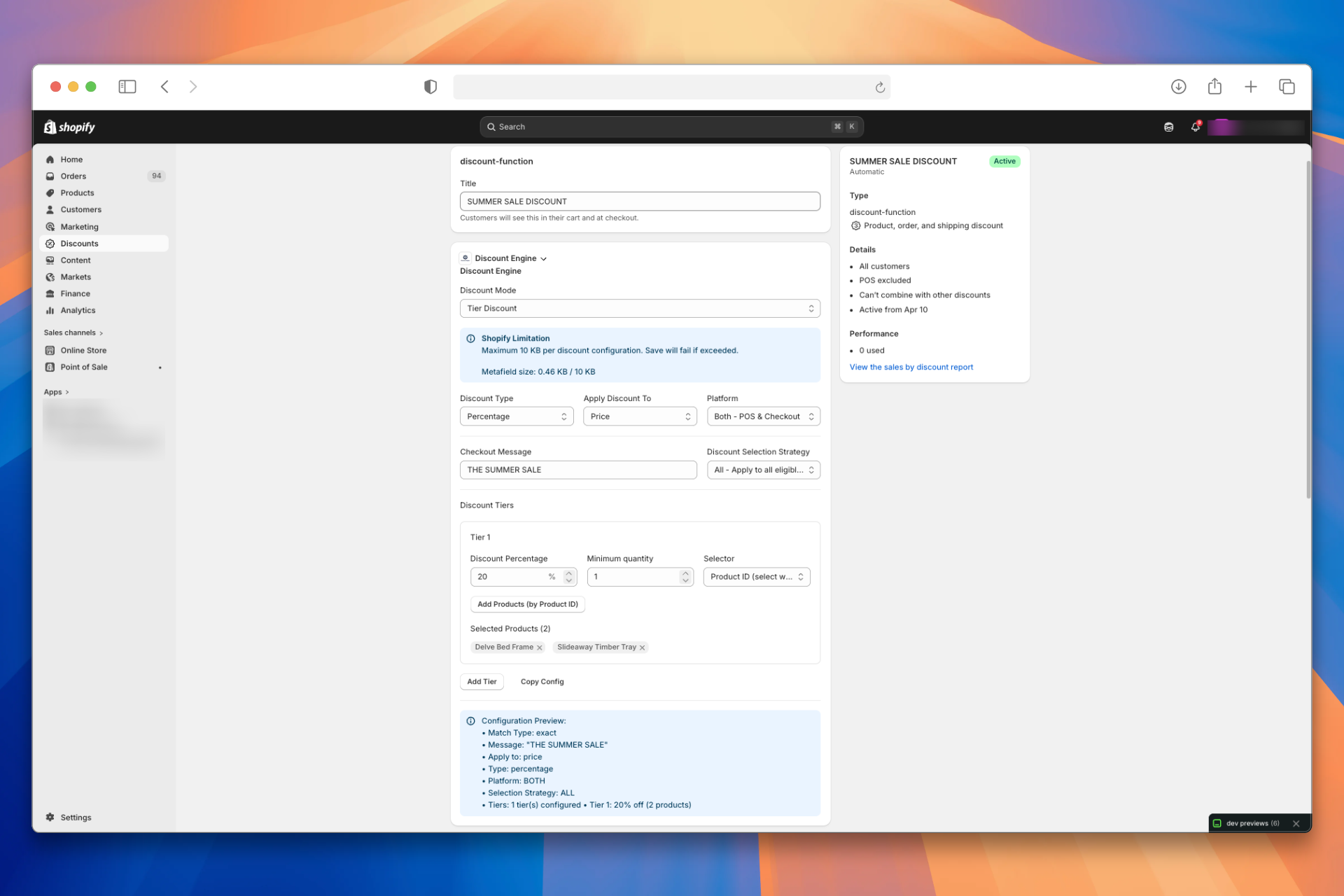 Caption: Tier Discount configured with 20% off two products and a "SUMMER SALE" checkout message
At checkout: Both products show "SUMMER SALE 20% OFF" with 20% deducted from each.
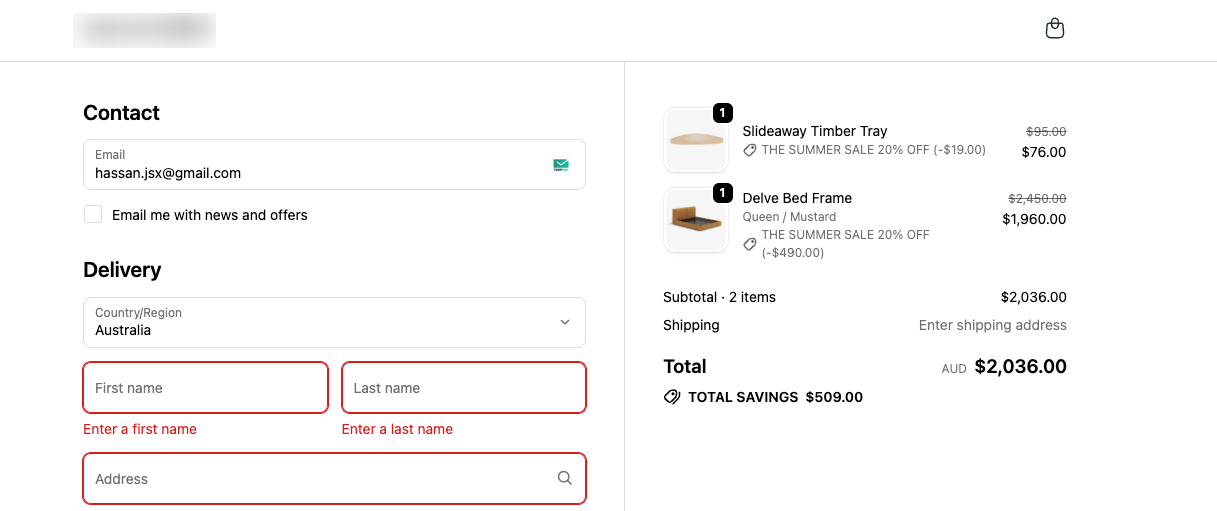 Caption: Customer sees "SUMMER SALE 20% OFF" on both eligible products
Example 2: Multiple Tiers
Different discounts for different product groups — 15% off one variant, 30% off two products.
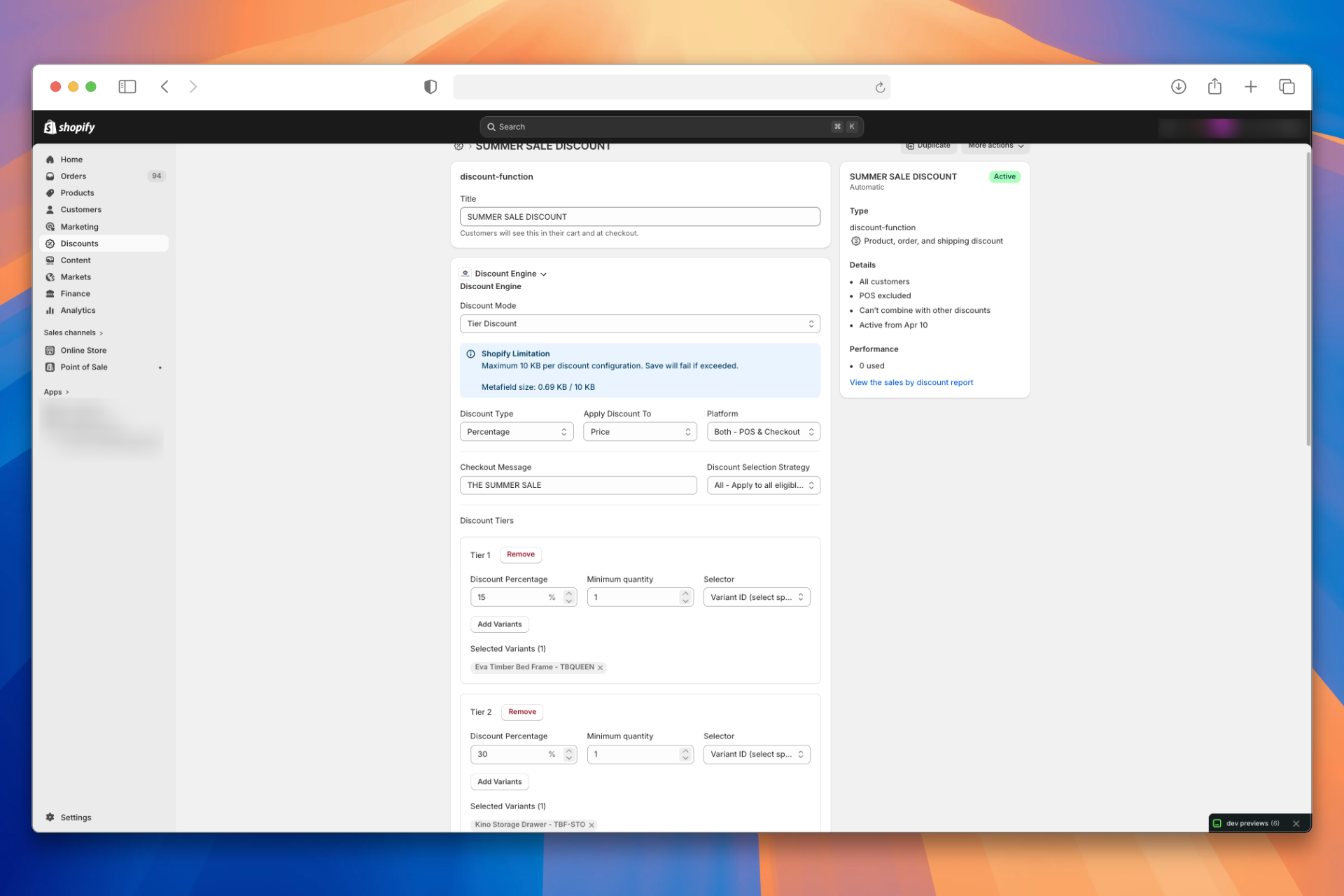 Caption: Two tiers configured with different percentages targeting different products
At checkout: The specific variant shows "15% OFF". The other product show "30% OFF".
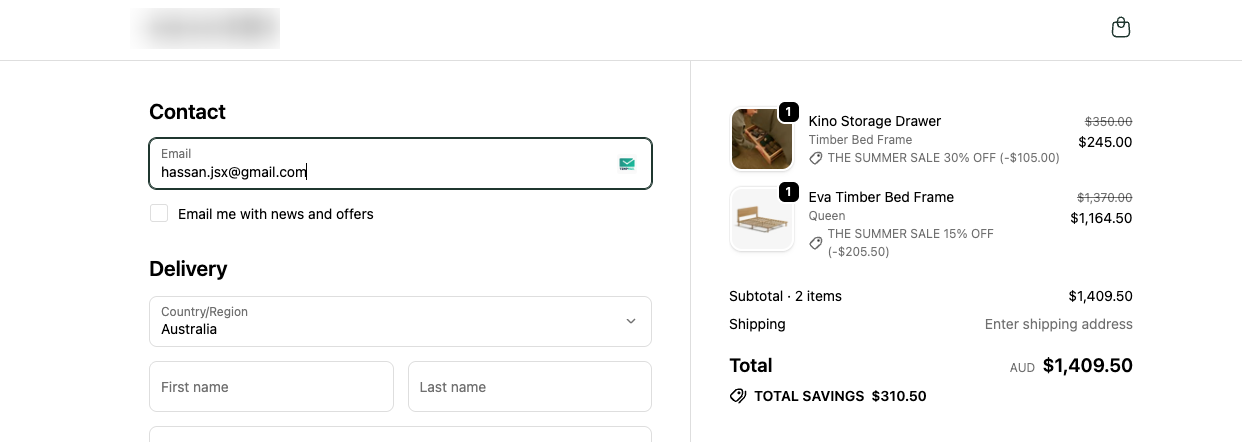 Caption: Different discount percentages applied to different product groups
Example 3: Minimum Quantity with RRP
Discount only applies when the customer has 2+ units on a single cart line. The discount is calculated from the RRP (compare-at) price.
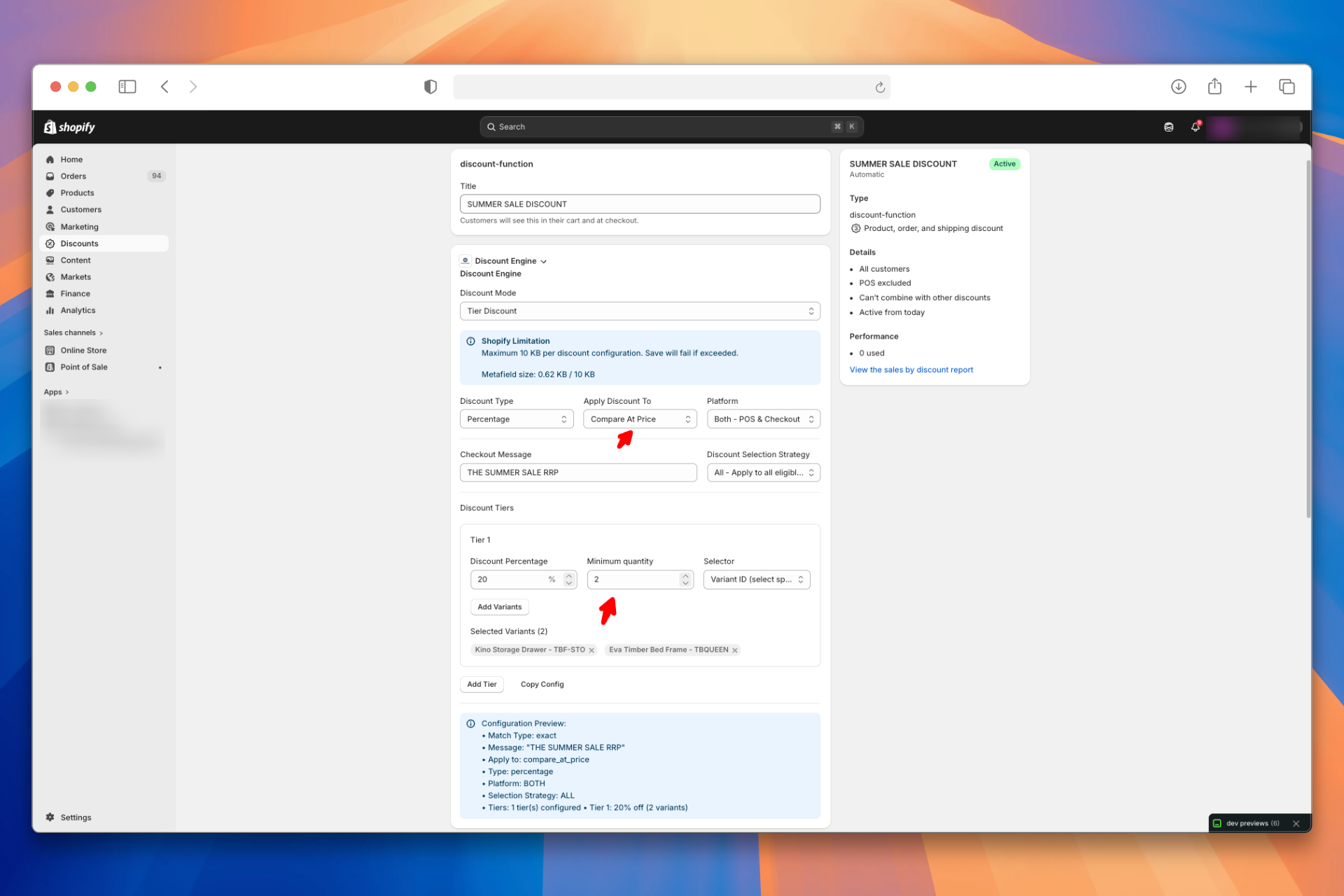 Caption: Tier configured with Minimum quantity of 2 and Apply Discount To set to RRP (Compare At Price)
At checkout:
- 1 unit in cart — no discount
- 2+ units in cart — shows "THE SUMMER SALE RRP 25% OFF", calculated from the RRP
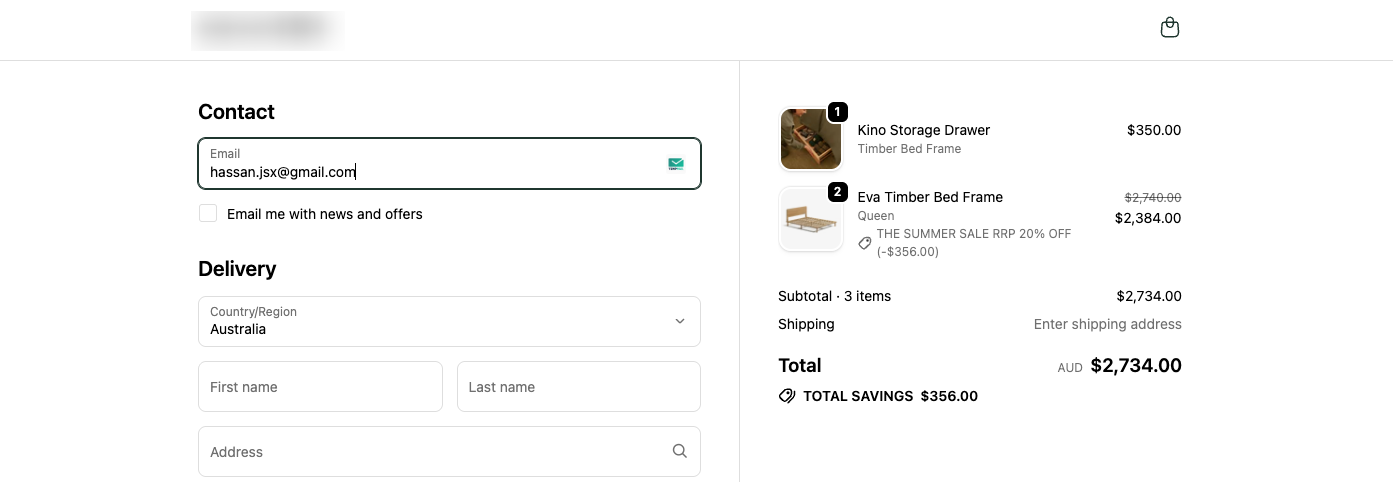 Caption: Discount applied only to cart lines with 2+ units
Does minimum quantity apply per cart line or per cart total?
Minimum quantity is evaluated per cart line, not across the cart total. Two separate cart lines of qty 1 each will not meet a minimum of 2, even if they are for the same product. The customer must add 2+ units on a single line to qualify.
Notes
- RRP (Compare At Price): When Apply Discount To is set to RRP (Compare At Price) but a product has no RRP set, the current selling price is used instead.
- Maximum strategy selects the single product line where the discount amount would be highest.
Demo
See how to configure a Tier Discount and how it appears at checkout.